
Journey
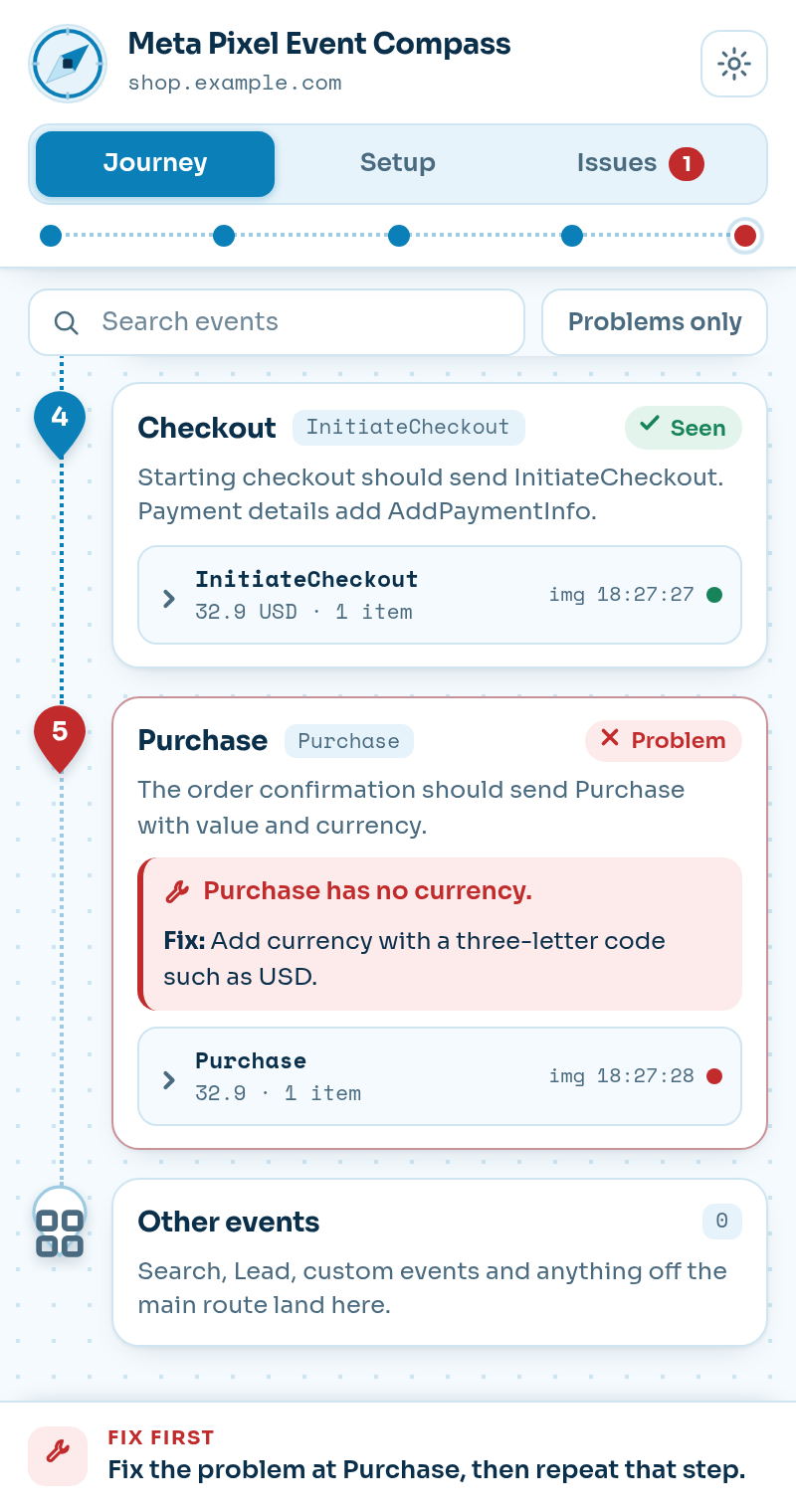
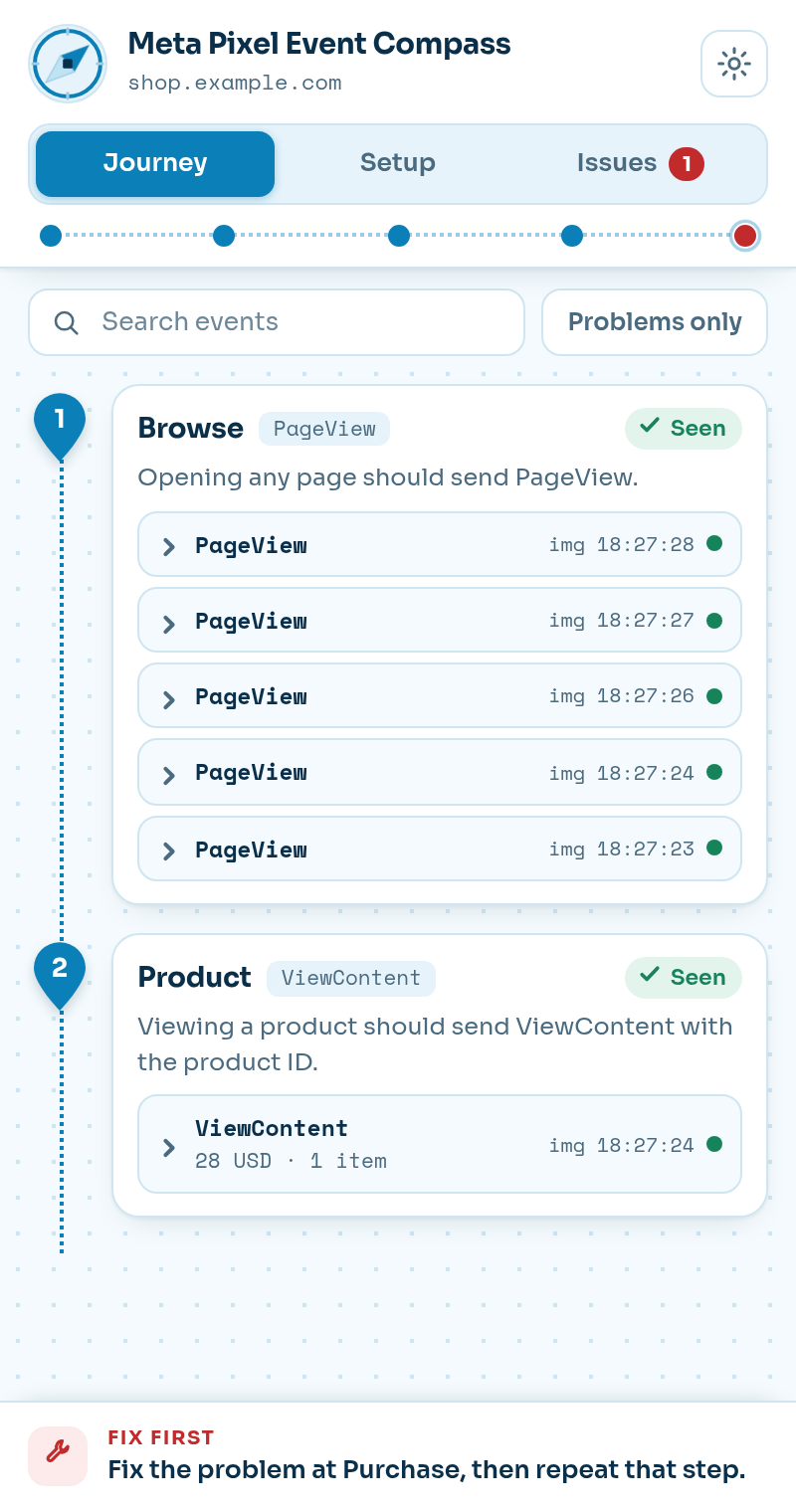
Five stations on a dotted route. Each shows the event it expects, the events it caught and a one-line fix when something is off.
Stop 1 of 5 · Browse
See which Meta Pixel events fire at every step, and get a plain fix for each miss.
It never changes your pages and has no analytics. Everything stays in your browser.
Five stations, one event each
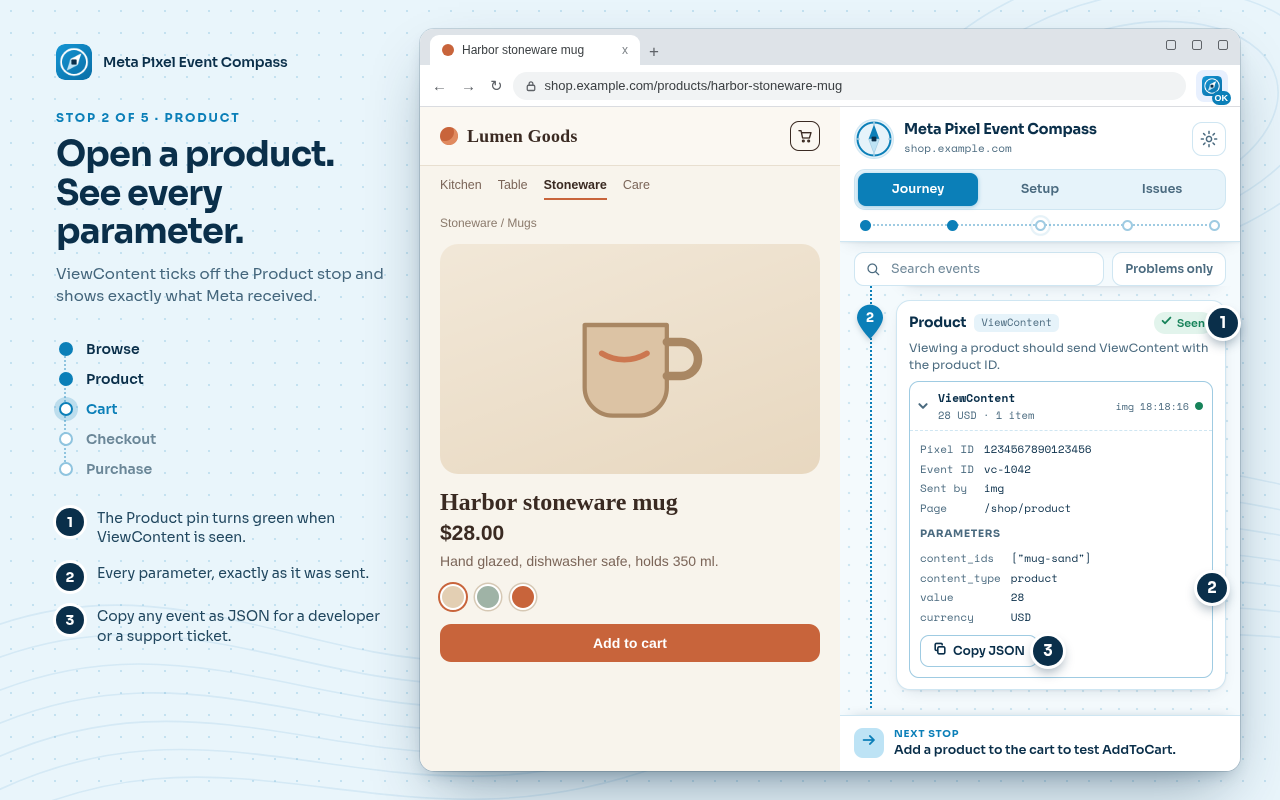
Stop 2 of 5 · Product
The compass is laid out as the path people really take through a shop, so you test in the right order and notice any step you skipped.
Open your site in Chrome and open the Event Compass side panel. It starts watching from the first request.
Browse, open a product, add it to the cart, start checkout and place a test order. The panel follows along.
A station turns green the moment the right event is really seen. A needle points to the first stop you have not finished.
A problem gets one plain line with the fix beside it. Change your tag or theme, reload and repeat that step.
Stop 3 of 5 · Cart
Stay on the Journey, check the pixel in Setup or go straight to the Issues. Light, dark and a settings page for exports and history are one tap away.
Five stations on a dotted route. Each shows the event it expects, the events it caught and a one-line fix when something is off.
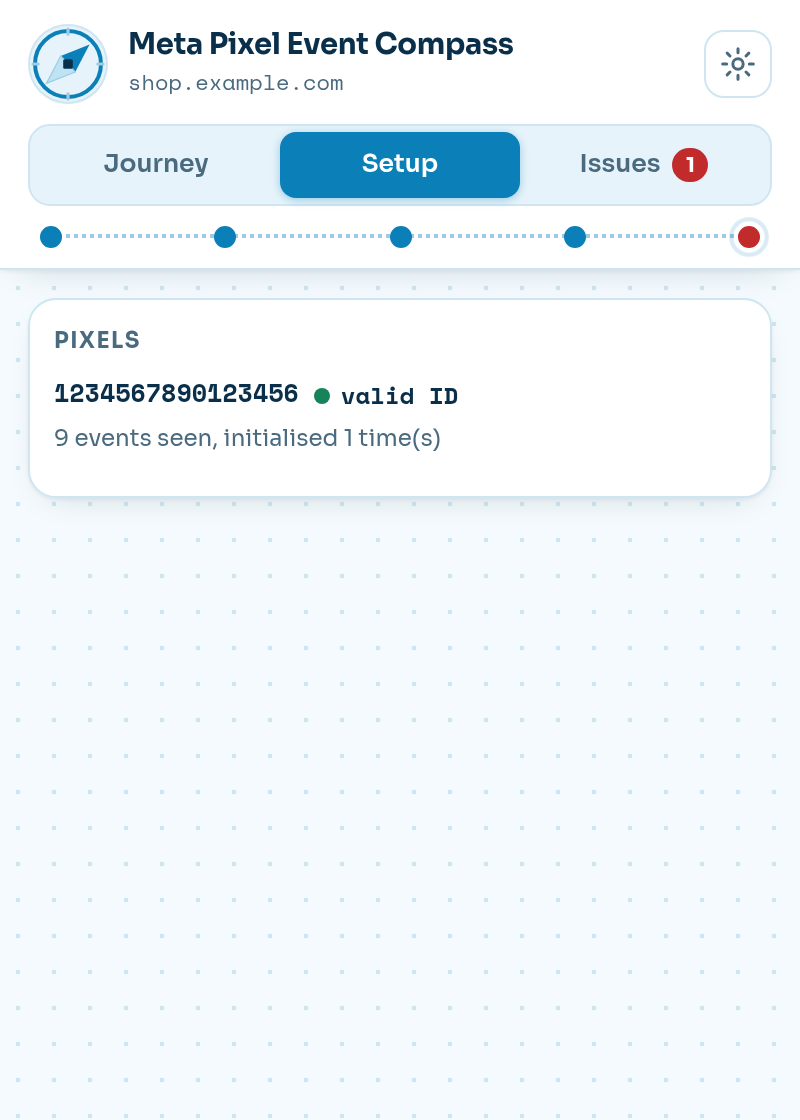
The pixel on the page at a glance. See each pixel ID, how often it started, consent state and which customer fields were hashed.
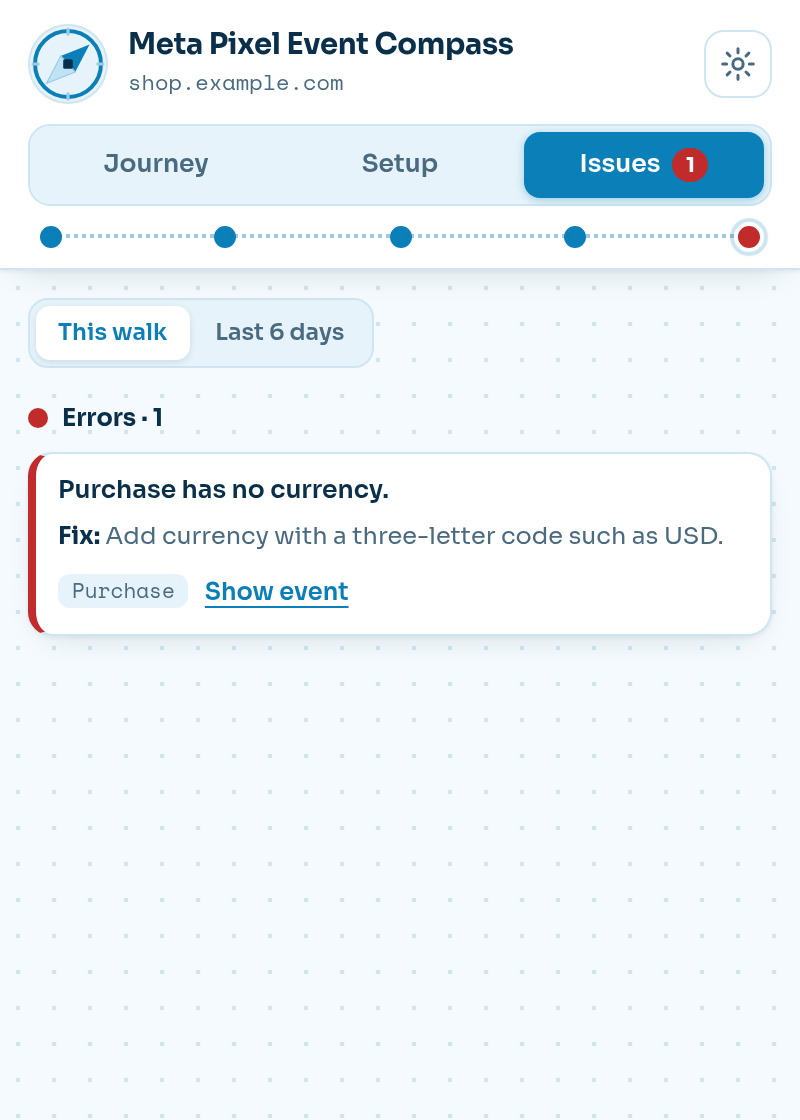
Problems grouped into errors, warnings and tips. Each one comes with a fix and jumps straight to the event that caused it.
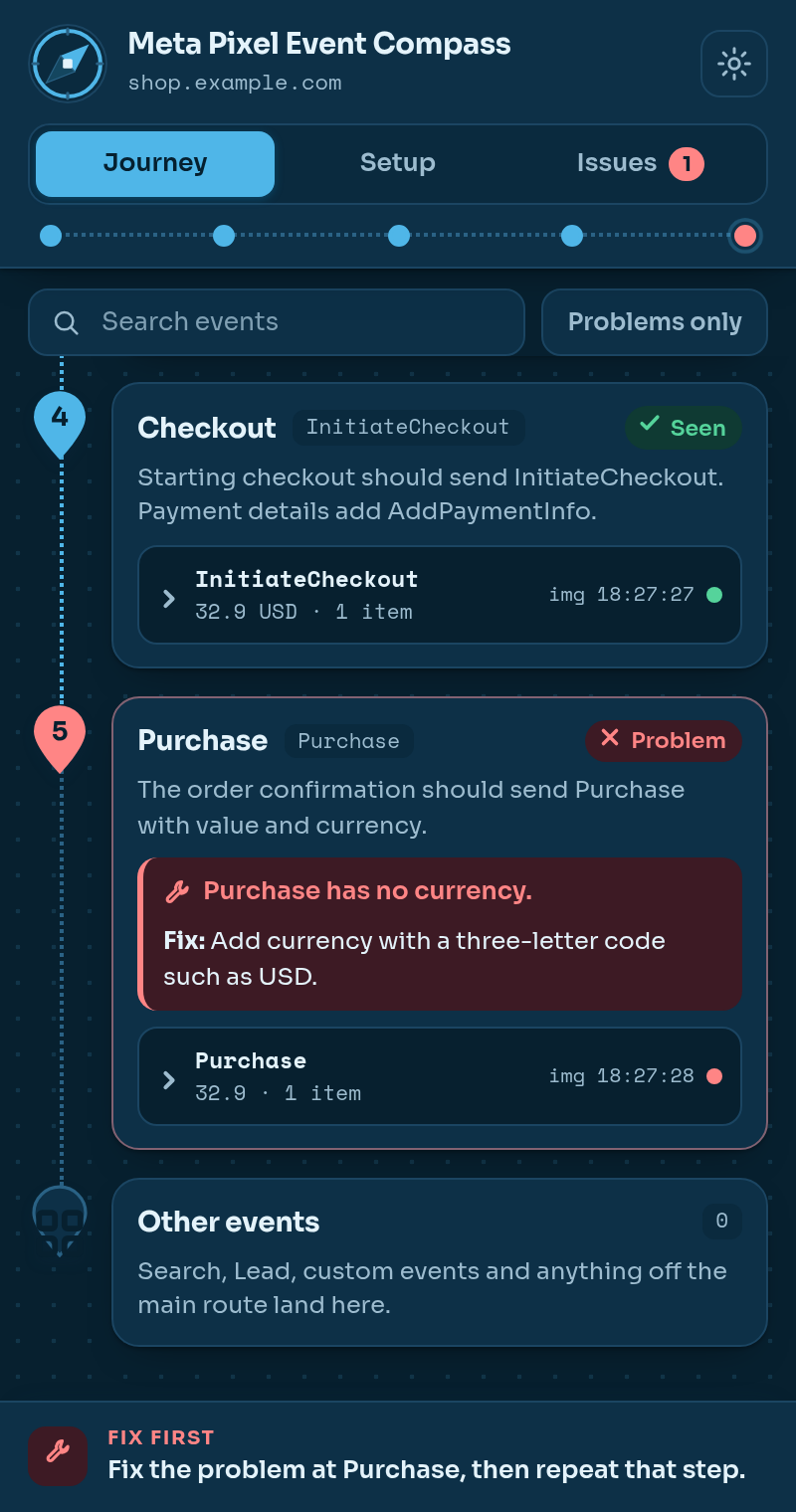
Dark theme
Follow your system, or pick light or dark yourself. The route and the stations keep the same shape.
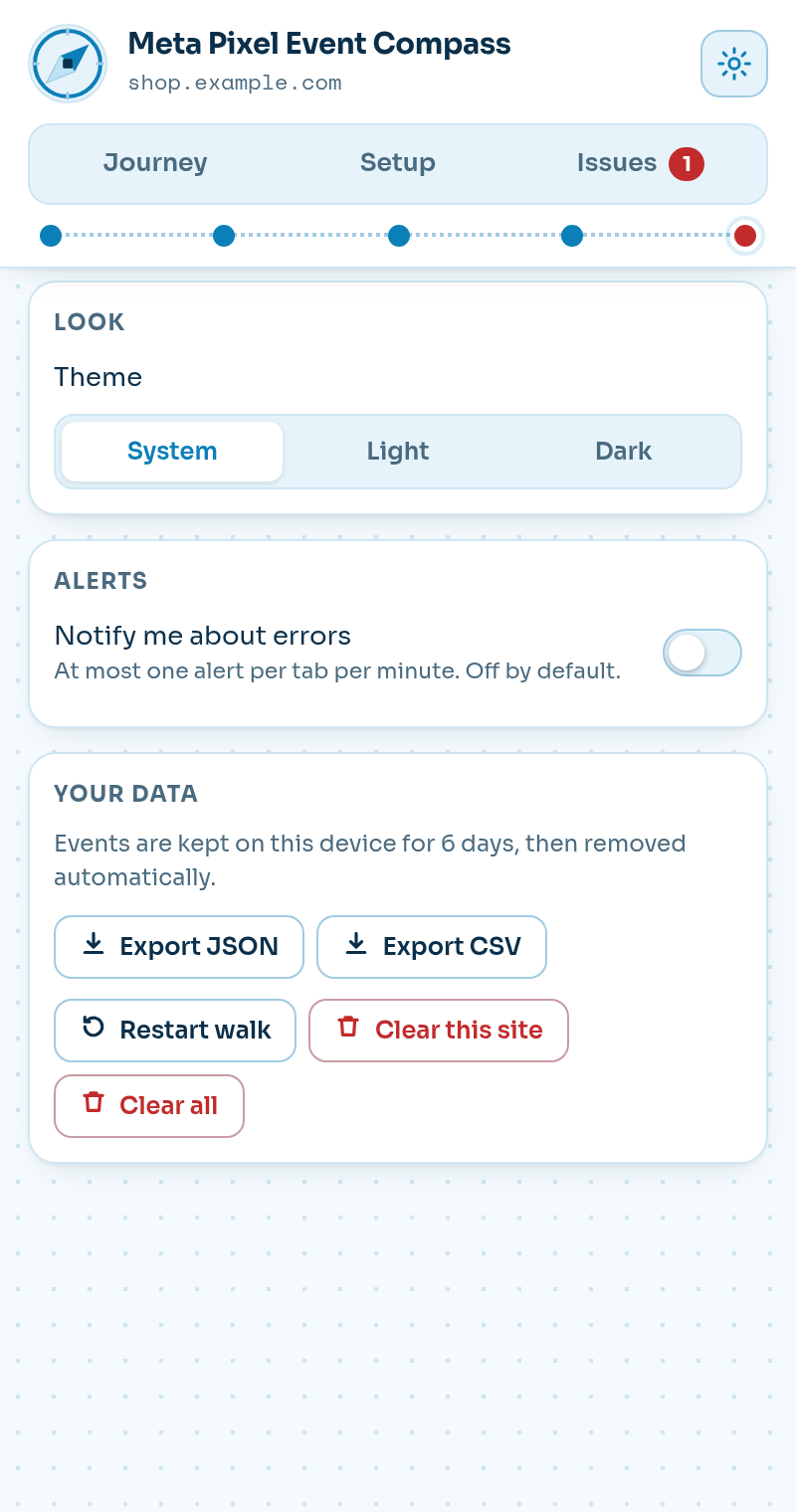
Settings
Save a walk as JSON or CSV. Look back over six days. The panel follows your browser language.
Stop 4 of 5 · Checkout
A small rule engine reads each event and says what is wrong in one plain line. A missing request can also have an innocent cause, and the panel tells you when it might.
Purchase has no currency.
Fix: Add currency with a three-letter code such as USD.
Stop 5 of 5 · Purchase
Event Compass is a developer tool that works on your own computer. There is nothing to sign up for and nothing to trust with your customers.
Events are read, checked and stored inside the browser. Nothing is sent to the developer or to anyone else.
It only watches what your pages send. It does not edit them, add tags or slow anything down.
There is no sign-up, no tracking and no advertising. The extension makes no network requests of its own.
History is kept on your computer for six days and then deleted. Clear one site or everything whenever you like.
Read the full privacy policy.
Questions
Open your shop, open the Event Compass side panel and walk through it as a customer would. Each stop turns green when its event arrives. If a stop turns amber or red, read the short fix beside it, change your tag or theme code, reload and repeat the step.
Yes. Everything is processed and stored inside your browser. The extension has no account, no analytics and makes no network requests of its own. Customer details are never stored. For customer fields it keeps only the field names and whether they were hashed. Email addresses and phone numbers that appear in parameters are replaced before anything is saved.
It reads what the browser sends, so it works with tags added by hand, by a tag manager or by a store platform. It cannot see anything that happens on a server.
No. It only observes the events your browser sends and makes no claim about anything sent from a server.
Some pages load the pixel late, inside a sandboxed frame or only after you accept cookies. Reload the page with the panel open so the compass can watch from the first request.
No. It never changes your pages and it has no analytics. Exports are files created on your own computer, and nothing is uploaded.
You have arrived
Add the compass to Chrome, open your shop and take the first step. It takes a few minutes to see where each event stands.